Adding, Configuring, and Deleting Zones
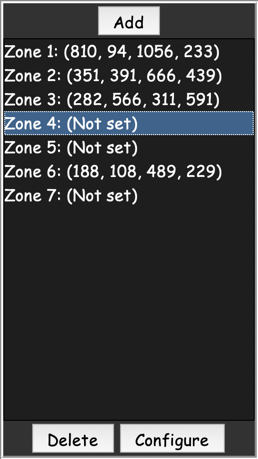
On the right side, a list of created zones is displayed.
Add
The “Add” button creates a new zone in the list of zones.
Note
If “Not set” is shown in parentheses for a zone, it means that the boundaries of this zone have not been defined. To set the zone boundaries, select the zone in the list and then double-click on the image. The first click sets the first vertex of the rectangle and enables drawing mode, and the second click completes the drawing of the zone, setting the coordinates (in pixels) for the selected zone. The coordinates will appear in parentheses instead of “Not set”. The coordinates are measured from the top-left corner of the image.
Configure
Opens the Zone settings window. In this window, you can:
Select a zone to configure from the list
Choose the color of this zone from the color list (a random color is assigned by default)
- Adjust the Threshold. This setting has different meanings depending on the recognition method:
7-segment, Neural Network If the grayscale value of a pixel is less than the threshold, the pixel will be converted to black; otherwise, to white.
Indicators If the RGB values of a pixel are all below the threshold, the pixel’s channel value will be set to 0; otherwise, to 255.
Pointer instruments: angle method, contour method These methods are based on detecting moving objects against a background. The threshold value controls how strong and distinct the changes between frames must be to be considered motion. A higher threshold means more pronounced changes are required for the algorithm to classify them as a moving object (the pointer). See details in Recognition methods
Pointer instruments: color method, QR and barcodes The threshold value has no effect.
Apply Inversion if needed. Inversion switches white pixels to black and black pixels to white.
Change the Inclination angle of the zone (parts extending beyond the borders will be cropped). You can enter an angle manually and adjust it using the up or down arrow.
Flip horizontally
Flip vertically
Choose a Recognition method and use additional settings depending on the selected method (Recognition methods).
Delete
The “Delete” button removes selected zones. If no zones are selected, the last one will be deleted.